Script Monitorar Processo Linux

[root@srvfw /]# cat /usr/local/bin/moni-msn-proxy.sh
#!/bin/bash
PATH=/bin:/usr/bin:/sbin:/usr/sbin:/usr/local/sbin

PID=`ps -eo pid,args | grep msn-proxy | grep -v grep | cut -c1-6`

if [ $PID ]
then

echo ‘Msn-Proxy OK!!!’

else

echo ‘Msn-Proxy Parado, reiniciando …’

/etc/init.d/msn-proxy start
fi
[root@srvfw /]#

Instalando o MSN-PROXY

Pacotes de compilação

# yum install gcc gcc-c++ autoconf automake cmake
# yum install httpd php php-mysql mysql-devel mysql-server -y

Libevent – esse pacote deve ser baixado pelo link acima

# tar -xvzf libevent-2.x.x-stable.tar.gz

# cd libevent-2.x.x-stable
# ./configure && make
# make install

Depois que você tiver compilado e instalado, entre no arquivo
# vim /etc/ld.so.conf
e adicione as seguintes linhas:
/usr/local/lib
/usr/lib

salve o arquivo e saia.

Depois execute o comando:
# ldconfig

Feito, depois de compilado e instalado vamos agora ao msn-proxy.

Agora vamos baixar o msn-proxy do svn

# svn co https://msn-proxy.svn.sourceforge.net/svnroot/msn-proxy msn-proxy

# cmake ../
# make
# make install

Os arquivos de configuração do msn-proxy estão localizados em /usr/local/etc/msn-proxy

Confira se seu mysql esta rodando, caso não, execute o comando abaixo:
# service mysqld start

Vamos agora criar a base do msn-proxy executando o comando abaixo, se seu usuário root estiver sem senha ele vai logar normal no banco, senão use

root com senha
# mysql -uroot -psenha

root sem senha
# mysql
> create database `msn-proxy`;
> grant all privileges on `msn-proxy`.* to `msn-proxy`@localhost identified by ‘secret’;
> flush privileges;
> quit

Ok, base de dados criada!.

Agora vamos entrar na pasta mysql para editar os dados de conexão com o banco:
# cd /usr/local/etc/msn-proxy/mysql
# vim conf

O arquivo deverá ter o seguinte conteúdo

# “host or socketport (zero for socket)userpassdatabase name”

localhost|0|msn-proxy|secret|msn-proxy

Salve o arquivo e feche.

Agora vamos executar o daemon pela primeira vez para fazer a criação das tabelas e inserções iniciais na base;

# /usr/local/bin/msn-proxy -d

Entre novamente no mysql e insira o ip do servidor
# mysql
# use msn-proxy;
> insert into defaults (internal_host) values (‘192.168.0.1’);
> quit

Agora vamos criar o pulo do gato, o cara que redireciona todas as conexões do msn para seu firewall
iptables -t nat -A PREROUTING -i eth0 -p tcp –dport 1863 -j REDIRECT –to-port 1863

Créditos : http://marcosabadi.blogspot.com.br/2008/10/monitoramento-de-msn-com-msn-proxy.html

Script Inicialização MSN-PROXY

# ——————————————————————————————- #

#!/bin/sh
# chkconfig: 345 99 10
# description: Msn-proxy

start (){
echo “Iniciando o MSN-Proxy”
/usr/local/bin/msn-proxy -b >> /dev/null
}
stop (){
echo “Finalizando o MSN-Proxy”
pkill -9 msn-proxy >> /dev/null
}

case “$1” in
start) start
;;
stop) stop
;;
*) echo “Uso: msn-proxy (startstop)”
;;
esac

# ——————————————————————————————- #

[root@centos ~]# chkconfig –add msn-proxy

[root@centos ~]# chkconfig msn-proxy on

[root@centos ~]# chkconfig –level 235 msn-proxy on

Créditos : http://marcosabadi.blogspot.com.br/2008/11/criando-e-colocando-um-scripts-para.html

Resetar Log “sem5.log” EndPoint

Solution

Symantec is aware and is investigating this issue.

Alternately, the following manual process is recommended to be performed as needed:

1) Stop the Symantec Endpoint Protection Manager and Symantec Embedded Database services.
2) Rename or delete the current sem5.log
3) Click Start Run and type CMD then click OK
4) In the Command Prompt type:
For 32-bit: CD C:\Program Files\Symantec\Symantec Endpoint Protection Manager\ASA\win32\
For 64-bit: CD C:\Program Files(x86)\Symantec\Symantec Endpoint Protection Manager\ASA\win32\
5) Press Enter. This will change directories to the folder containing dbsrv11.exe.
6) To force the recreation of sem5.log, type:
For 32-bit: dbsrv11 -f “C:\Program Files\Symantec\Symantec Endpoint Protection Manager\db\sem5.db”
For 64-bit: dbsrv11 -f “C:\Program Files(x86)\Symantec\Symantec Endpoint Protection Manager\db\sem5.db”
7) Press Enter
8) Click Start > Run and type services.msc then click OK
9) Start the Symantec Endpoint Protection Manager and Symantec Embedded Database services.

Crédito : http://www.symantec.com/business/support/index?page=content&id=TECH178718

Script ATTACH USB STORAGE no Xenserver

Modify the usbmount.bat script

1. Using a text editor such as Notepad, edit the usbmount.bat script according to your requirements. The following attributes must be set:

2. Set the username, password and address (IP or hostname) of your XenServer host:

SET XE_USERNAME=root
SET XE_PASSWORD=CHANGEME
SET XE_SERVER=xxx.xxx.xxx.xxx

3. Determine the universally unique identifier (UUID) of the Storage Repository that corresponds with the Removable Storage. You can determine this by running the following command from within your XenServer host console:

xe sr-list name-label=Removable\ Storage

4. Once you have the UUID of the Removable Storage, make the change to the script:

REM Removable Storage Repository UUID

SET REMOVABLE_SR_UUID=CHANGEME

5. Determine the UUID of the virtual machine (VM) you wish to attach the storage to. To do this, run:

xe vm-list

6. With the UUID of the VM, make the change to the script:

REM UUID of the VM you wish to attach the USB storage to

SET VM_UUID=CHANGEME

7. Set the device order. It is important to ensure that there is no overlap and this is done by looking at the number of devices attached to the VM. For example, if only one storage device is currently being used (example: virtual hard disk), the next device name to use will be hdb.

REM Device name/order on the VM (example: hdb, hdc, hdd…)

SET DEVICE_NAME=hdb

8. Run or Schedule the Batch Program

9. Once you have made the changes to the batch program, test it by running it from a Command Prompt window. Note that the utility requires a parameter, otherwise it exits.

10. To attach the USB storage device to the VM, run:

usbmount.bat ATTACH

11. To detach the USB storage device from the VM, run:

usbmount.bat DETACH

Listing of USBMOUNT.BAT

@ECHO OFF
setlocal
REM Attach a USB flash device to a specified VM on XenServer 4.x

REM ————- EDIT THE OPTIONS BELOW TO SUIT YOUR ENVIRONMENT ————-

REM XenServer Credentials
SET XE_USERNAME=root
SET XE_PASSWORD=CHANGEME
SET XE_SERVER=xxx.xxx.xxx.xxx

REM Removable Storage Repository UUID
SET REMOVABLE_SR_UUID=CHANGEME

REM UUID of the VM you wish to attach the USB storage to
SET VM_UUID=CHANGEME

REM Device name/order on the VM (e.g. hdb, hdc, hdd…)
set DEVICE_NAME=hdb

REM —————————————————————————

REM XenCenter Path
SET XE_CENTER_PATH=C:\program files\citrix\XenCenter\

REM XE Binary and Baseline Parameters
SET XE_EXEC=”%XE_CENTER_PATH%\xe.exe” -s %XE_SERVER% -u %XE_USERNAME% -pw %XE_PASSWORD%

REM Temporary working file
SET TEMP_FILE=%TEMP%/xs-usbmount.tmp

REM ———— DO NOT EDIT BEYOND THIS LINE —————-

IF “%1″==”ATTACH” GOTO ATTACH_STORAGE
IF “%1″==”DETACH” GOTO DETACH_STORAGE

REM No parameters
echo Usage USBMOUNT.BAT ^<ATTACH ^| DETACH^>
GOTO END

:DETACH_STORAGE
%XE_EXEC% vdi-list sr-uuid=%REMOVABLE_SR_UUID% params=vbd-uuids –minimal > %TEMP_FILE%
SET /P VBD_UUIDS= < %TEMP_FILE%

IF “%VBD_UUIDS%”==”” GOTO NOT_BOUND
%XE_EXEC% vbd-unplug uuid=%VBD_UUIDS%
%XE_EXEC% vbd-destroy uuid=%VBD_UUIDS%
echo.Storage Detached

GOTO END

:ATTACH_STORAGE

REM See if the storage is already bound to a VBD
%XE_EXEC% vdi-list sr-uuid=%REMOVABLE_SR_UUID% params=vbd-uuids –minimal > %TEMP_FILE%
SET /P VBD_UUIDS= < %TEMP_FILE%

IF NOT “%VBD_UUIDS%”==”” GOTO ALREADY_BOUND

%XE_EXEC% vdi-list sr-uuid=%REMOVABLE_SR_UUID% params=uuid –minimal > %TEMP_FILE%
SET /P VDI_UUID= < %TEMP_FILE%

%XE_EXEC% vbd-create vm-uuid=%VM_UUID% device=%DEVICE_NAME% vdi-uuid=%VDI_UUID% –minimal > %TEMP_FILE%
SET /P VBD_UUID= < %TEMP_FILE%

%XE_EXEC% vbd-plug uuid=%VBD_UUID%

echo.VBD UUID attached as: %VBD_UUID%
GOTO END

:ALREADY_BOUND
echo.Removable storage already attached to a VM – aborting.
GOTO END

:NOT_BOUND
echo.Storage device not bound to any VMs – aborting.
GOTO END

:END
endlocal

# ——————————————————————————————- #

Script usbmount.sh

#!/bin/bash
xe vbd-create vm-uuid=c145b8f0-7c3d-9208-c219-14cbec468911 device=autodetect vdi-uuid=146a5021-77a5-44b6-bcaa-edc5a1d4c822 > /marlo/vbduuid
vbduuid=$(cat /marlo/vbduuid)
xe vbd-plug uuid=$vbduuid

# ——————————————————————————————- #

Crédito : http://support.citrix.com/article/CTX118198
Se Protegendo a Ataque Loic DDOS

LOIC (Low Orbit Ion Cannon) is an Open Source tool that has been used by anonymous group against governmental websites and mail servers, the main purpose of these attacks is to launch a distributed denial of service against a website and make them offline.

There are already other similar tools that may perform this attack to stop any website and make it unreachable for legitimate users. By looking at the technique used to perform this attack the tool send about 10 Long HTTP/HTTPS requests per second till it reach bandwidth or connection limits of hosts or networking equipment to make it offline . Now the question is how we can stop this attack? What are the preventive measures against the Layer7 DDoS?

First of all we start limiting the traffic using hashlimit on iptables this module can be used to allow just a certain number of packets per minute:

[php]iptables -A INPUT -p tcp –dport 80 -m hashlimit –hashlimit-upto 50/min

–hashlimit-burst X –hashlimit-mode srcip –hashlimit-name http -j ACCEPT

iptables -A INPUT -p tcp –dport 80 -j DROP[/php]

X is the number of connection so you can expect that the DDoS tool will send approximately 600 Long requests per minute so you need to make it less and as a result the firewall will Drop the connection ( do not also forget to change the port 80 according to the service that are provided from your facilities).

Now if you are using Apache you can add Module mod_reqtimeout this directive can set various timeouts for receiving the request headers and the request body from the client. If the client fails to send headers or body within the configured time, a 408 REQUEST TIME OUT error is sent.

A final important note is to stop the Hive which is used as the command-and-control server to send instructions regarding different target, so if you stop the Hive each person will be launching the attack separately and can stop the DDoS.

Créditos : http://www.sectechno.com/2011/01/25/preventing-layer-7-ddos-attack/

Transferir FSMO Windows 2008

The five FSMO roles are:

  1. Schema Master
  2. Domain Naming Master
  3. Infrastructure Master
  4. Relative ID (RID) Master
  5. PDC Emulator

The FSMO roles are going to be transferred, using the following three MMC snap-ins :

  • Active Directory Schema snap-in  : Will be used to transfer the Schema Master role
  • Active Directory Domains and Trusts snap-in : Will be used to transfer the Domain Naming Master role
  • Active Directory Users and Computers snap-in : Will be used to transfer the RID MasterPDC Emulator, and Infrastructure Master roles

Note: The following steps are done on the Windows Server 2008 machine that I intend to set as the roles holder ( transfer the roles to it )

Lets start transferring the FSMO roles.

  • Using Active Directory Schema snap-in to transfer the Schema Master role 

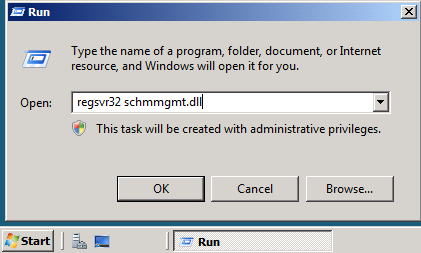
    You have to register schmmgmt.dll in order to be able to use the Active Directory Schema snap-in

  1. Click Start > Run 
  2. Type regsvr32 schmmgmt.dll
  3. Click OK

    A popup message will confirm that schmmgmt.dll was successfully registered. Click OK 

  4. Click Start Run, type mmc, then click OK
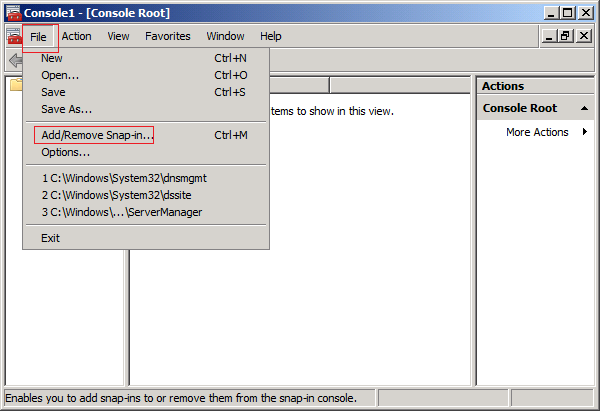
  5. Click File > then click Add/Remove Snap-in…
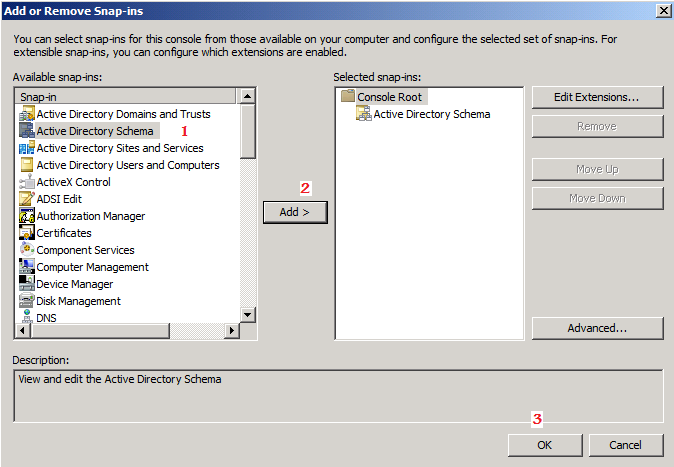
  6. From the left side, under Available Snap-ins, click on Active Directory Schema, then click Add > and then click OK

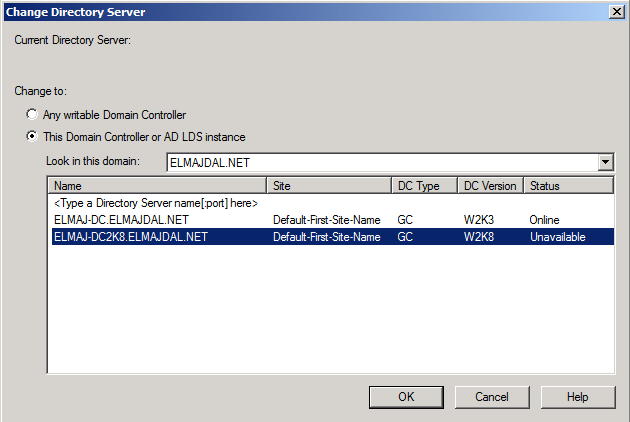
  7. Right click Active Directory Schema, then click Change Active Directory Domain Controller…
  8. From the listed Domain Controllers, click on the domain controller that you want to be the schema master role holder and then click on OK

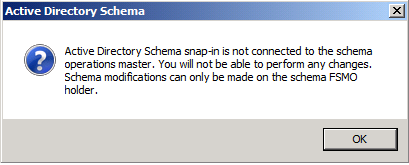
    You will receive a message box stating that the schema snap-in is not connected to a schema operations master. That is for sure, as we have not yet set this Windows Server 2008 domain controller as a Schema Master role holder. This will be done in the next step. Click OK

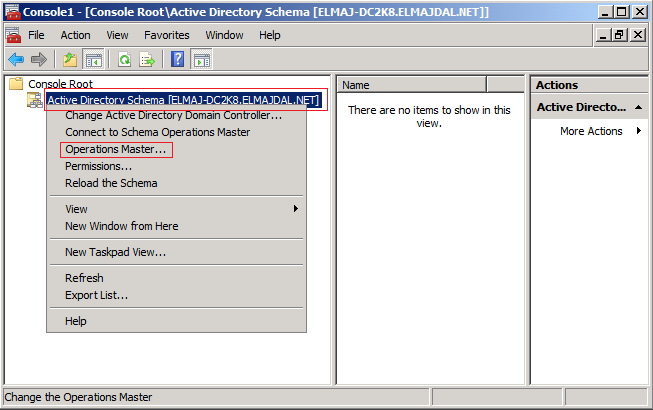
  9. In the console tree, right click Active Directory Schema [DomainController.DomainName], and then click Operations Master…
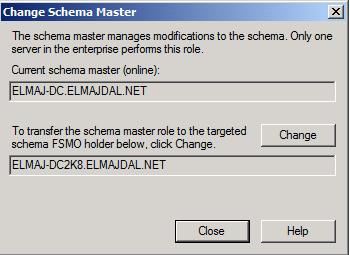
  10. On the Change Schema Master page, the current schema master role holder will be displayed ( ex. ELMAJ-DC.ELMAJDAL.NET) and the targeted schema holder as well (ex. ELMAJ-DC2K8.ELMAJDAL.NET). Once you click Change, the schema master holder will become 
    ELMAJ-DC2K8.ELMAJDAL.NET
     , click Change

    Click Yes to confirm the role transfer

    The role will be transferred and a confirmation message will be displayed. Click OK

    Then click Close, as you can see in the below snapshot, the current schema master is ELMAJ-DC2K8.ELMAJDAL.NET

  • Using Active Directory Domains and Trusts snap-in to transfer the Domain Naming Master Role
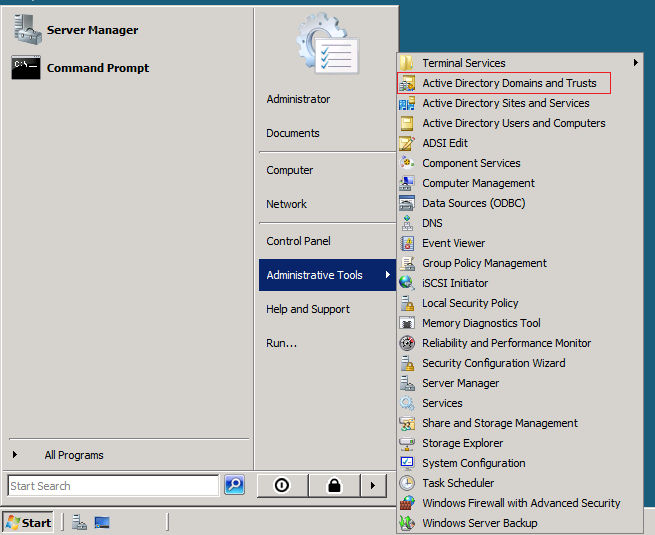
  1. Click Start Administrative Tools > then click Active Directory Domains and Trusts
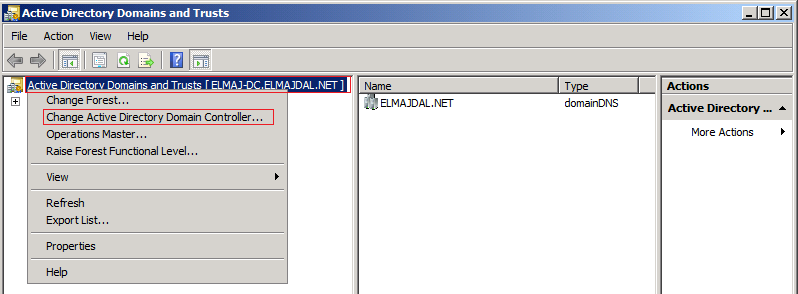
  2. Right click Active Directory Domains and Trusts, then click Change Active Directory Domain Controller…
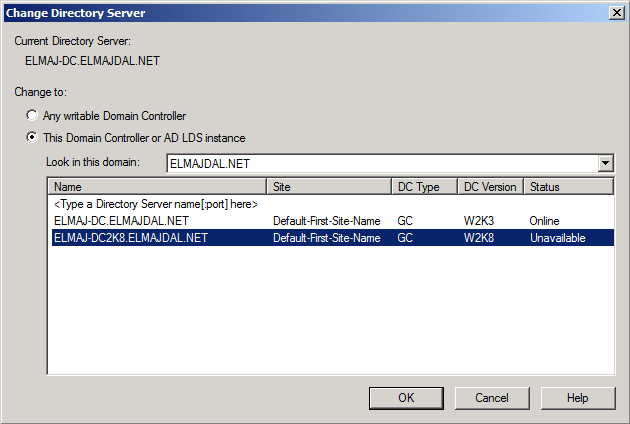
  3. From the listed Domain Controllers, click on the domain controller that you want to be the Domain Naming master role holder and then click onOK
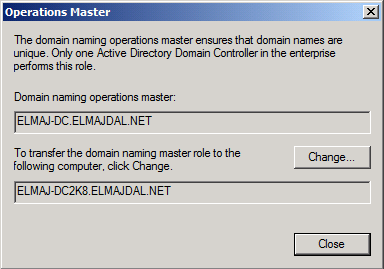
  4. Right click Active Directory Domains and Trusts, then click Operations Master…
  5. On the Operations Master page, we are going to change the Domain Naming role holder from ELMAJ-DC.ELMAJDAL.NET to ELMAJ-DC2K8.ELMAJDAL.NET, Click Change

    Click YES to confirm the transfer of the Domain Naming role

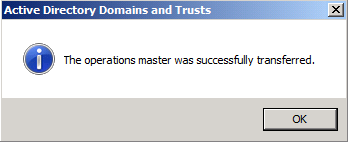
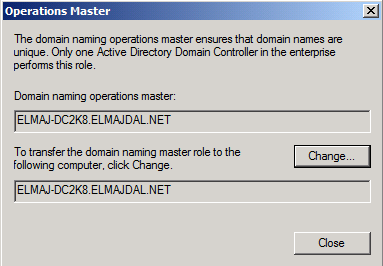
    The role will be transferred and a confirmation message will be displayed. Click OK , then click Close

Till now, we have successfully transferred two FSMO roles, the Schema Master role and the Domain Naming role. The last three roles can be transferred using a single Snap-in.


  • Using Active Directory Users and Computers snap-in to transfer the RID Master, PDC Emulator, and Infrastructure Master Roles
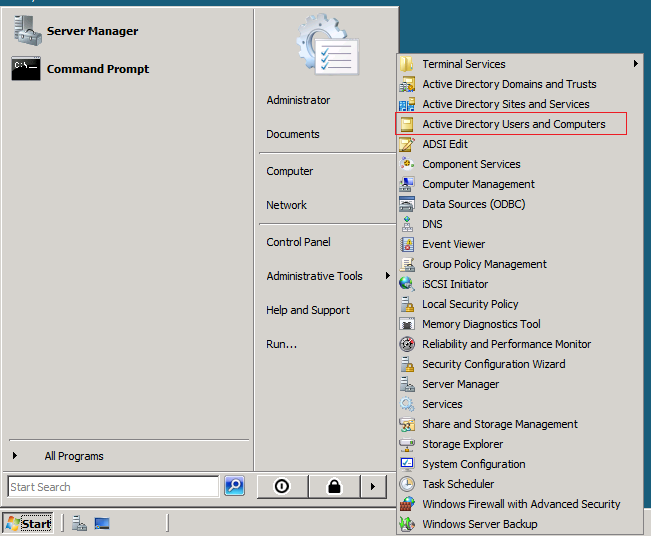
  1. Click Start > Administrative Tools > then click Active Directory Users and Computers
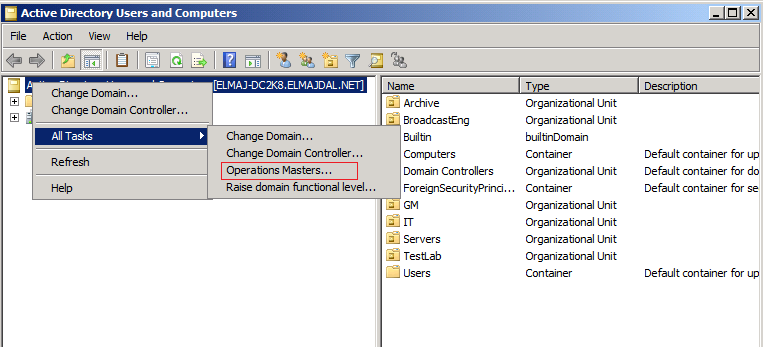
  2. Right click Active Directory Users and Computers, then click All Tasks > Operations Master…
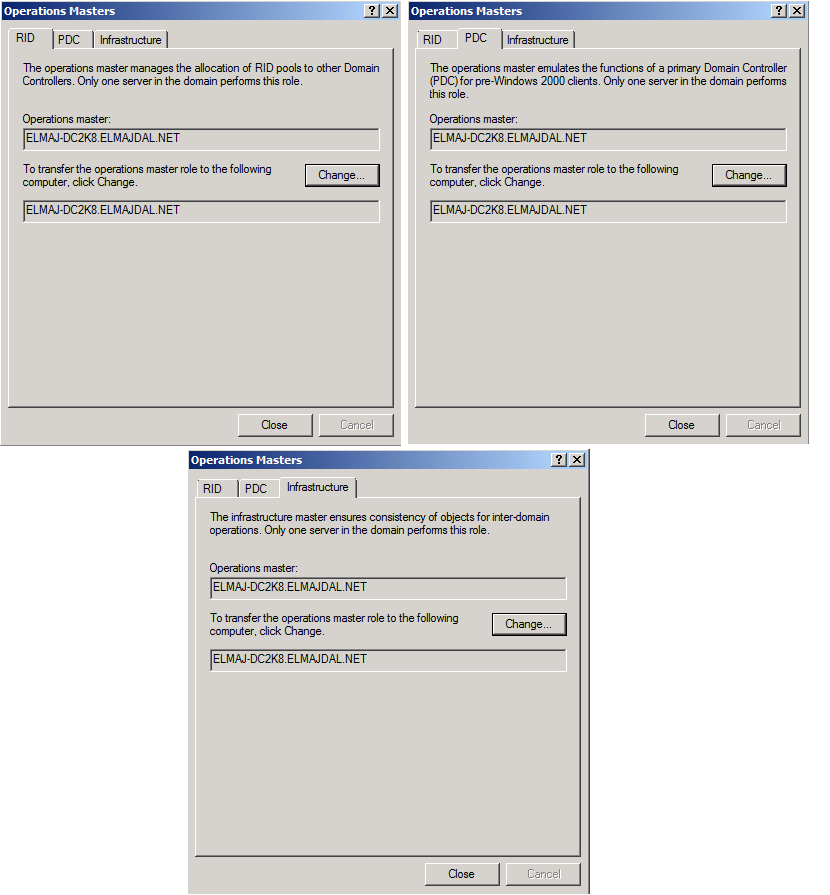
  3. You will have three Tabs, representing three FSMO roles (RID, PDC, Infrastructure). Click the Change button under each of these three tabs to transfer the roles.

    Click Yes to confirm the role transfer

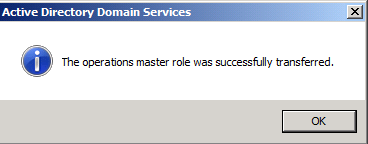
    The role will be transferred and a confirmation message will be displayed. Click OK

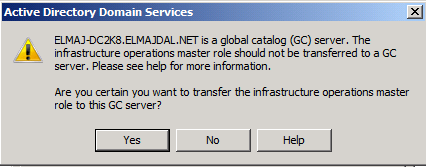
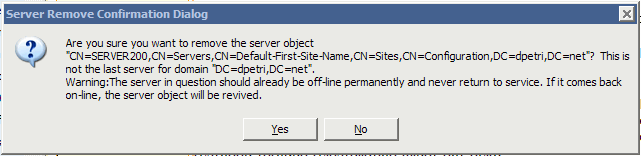
    As for the Infrastructure role, once you click on the Change button you will receive the below message

    By default, when you first install your first Domain Controller, it holds the five roles and beside that it is a Global Catalog. If your environment is a multi-domain/forest, then you should think about structuring your FSMO roles and transfer the Infrastructure role to a none Global Catalog domain controller. Else if you have small number of domain controllers ( ex. two domain controllers) then you should not worry about this. Click Yes

  4. The Tabs should now look like this:


That’s it, by now, you have successfully transferred the five FSMO roles to the Windows Server 2008 Domain Controller.

Crédito : http://www.elmajdal.net/win2k8/Transferring_FSMO_Roles_in_Windows_Server_2008.aspx

Remover DC Failed

To clean up metadata

  1. At the command line, type Ntdsutil and press ENTER.
C:\WINDOWS>ntdsutil
ntdsutil:
  1. At the Ntdsutil: prompt, type metadata cleanup and press Enter.
ntdsutil: metadata cleanup
metadata cleanup:
  1. At the metadata cleanup: prompt, type connections and press Enter.
metadata cleanup: connections
server connections:
  1. At the server connections: prompt, type connect to server <servername>, where <servername> is the domain controller (any functional domain controller in the same domain) from which you plan to clean up the metadata of the failed domain controller. Press Enter.
server connections: connect to server server100
Binding to server100 ...
Connected to server100 using credentials of locally logged on user.
server connections:

Note: Windows Server 2003 Service Pack 1 eliminates the need for the above step.

  1. Type quit and press Enter to return you to the metadata cleanup: prompt.
server connections: q
metadata cleanup:
  1. Type select operation target and press Enter.
metadata cleanup: Select operation target
select operation target:
  1. Type list domains and press Enter. This lists all domains in the forest with a number associated with each.
select operation target: list domains
Found 1 domain(s)
0 - DC=dpetri,DC=net
select operation target:
  1. Type select domain <number>, where <number> is the number corresponding to the domain in which the failed server was located. Press Enter.
select operation target: Select domain 0
No current site
Domain - DC=dpetri,DC=net
No current server
No current Naming Context
select operation target:
  1. Type list sites and press Enter.
select operation target: List sites
Found 1 site(s)
0 - CN=Default-First-Site-Name,CN=Sites,CN=Configuration,DC=dpetri,DC=net
select operation target:
  1. Type select site <number>, where <number> refers to the number of the site in which the domain controller was a member. Press Enter.
select operation target: Select site 0
Site - CN=Default-First-Site-Name,CN=Sites,CN=Configuration,DC=dpetri,DC=net
Domain - DC=dpetri,DC=net
No current server
No current Naming Context
select operation target:
  1. Type list servers in site and press Enter. This will list all servers in that site with a corresponding number.
select operation target: List servers in site
Found 2 server(s)
0 - CN=SERVER200,CN=Servers,CN=Default-First-Site-Name,CN=Sites,CN=Configuration,DC=dpetri,DC=net
1 - CN=SERVER100,CN=Servers,CN=Default-First-Site-Name,CN=Sites,CN=Configuration,DC=dpetri,DC=net
select operation target:
  1. Type select server <number> and press Enter, where <number> refers to the domain controller to be removed.
select operation target: Select server 0
Site - CN=Default-First-Site-Name,CN=Sites,CN=Configuration,DC=dpetri,DC=net
Domain - DC=dpetri,DC=net
Server - CN=SERVER200,CN=Servers,CN=Default-First-Site-Name,CN=Sites,CN=Configuration,DC=dpetri,DC=net
 DSA object - CN=NTDS Settings,CN=SERVER200,CN=Servers,CN=Default-First-Site-Name,CN=Sites,CN=Configuration,DC=dpetri,DC=net
 DNS host name - server200.dpetri.net
 Computer object - CN=SERVER200,OU=Domain Controllers,DC=dpetri,DC=net
No current Naming Context
select operation target:
  1. Type quit and press Enter. The Metadata cleanup menu is displayed.
select operation target: q
metadata cleanup:
  1. Type remove selected server and press Enter.

You will receive a warning message. Read it, and if you agree, press Yes.

cleanup

metadata cleanup: Remove selected server

"CN=SERVER200,CN=Servers,CN=Default-First-Site-Name,CN=Sites,CN=Configuration,DC=dpetri,DC=net" removed from server "server100"
metadata cleanup:

At this point, Active Directory confirms that the domain controller was removed successfully. If you receive an error that the object could not be found, Active Directory might have already removed from the domain controller.

Crédito : http://www.petri.co.il/delete_failed_dcs_from_ad.htm

Restaurar Padrão GPOs Windows Server

Sintaxe

DCGPOFix [/Target: Domain | DC | BOTH]

Parâmetros

/Target: Domain
Specifies the target domain name.
/DC Domain Controller
Specifies the target domain controller name.
/BOTH Domain and Domain Controller
Specifies both the target Domain name and Domain Controller name.

Exemplo

O exemplo abaixo mostra com usar comando DCGPOFix

DCGPOFix /Target: MyDomain | DC

Como utilizar a ferramenta DCGPOfix:

Siga os passos descritos abaixo para que você consiga restaurar as GPOs padrões do Sistema Operacional Windows Server 2003®.

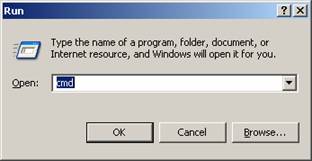
  • Clique no menu iniciar > executar e digite cmd e pressione Enter conforme figura abaixo:

Cc668485.clip_image001(pt-br,TechNet.10).jpg

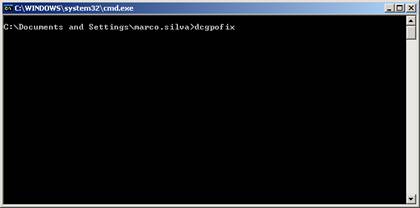
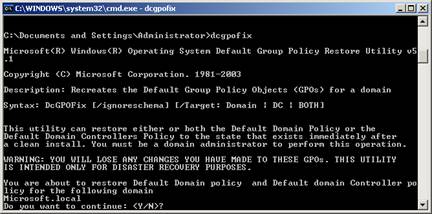
– Logo após no prompt de comando digite dcgpofix e pressione Enter conforme figura abaixo

Cc668485.dcgpofix_clip_image002(pt-br,TechNet.10).jpg

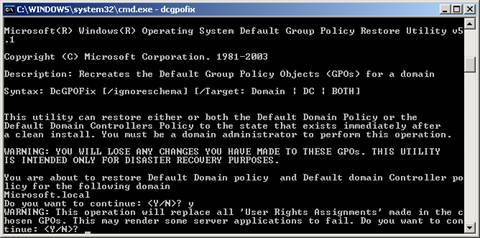
– Leia as informações e pressione a tecla Y (figura abaixo)

Cc668485.dcgpofix_clip_image003(pt-br,TechNet.10).jpg

– Leia novamente a mensagem de aviso e pressione Y

Cc668485.dcgpofix_clip_image004(pt-br,TechNet.10).jpg

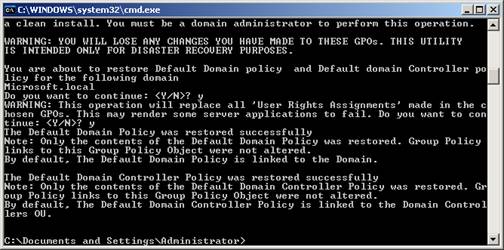
– Em seguida será exibida a informação que as GPOs foram restauradas com sucesso. (Figura abaixo):

Cc668485.dcgpofix_clip_image005(pt-br,TechNet.10).jpg

Crédito : http://technet.microsoft.com/pt-br/library/cc668485.aspx

Repositório timb para CentOS

To install the repo first install the public key (yes all RPM’s will now be signed):-

Code:

rpm --import ftp://timburgess.net/RPM-GPG-KEY-TimB.txt

Then install the release RPM (by default the ‘timb’ and ‘timb-testing’ repo’s will be disabled)

Code:

wget ftp://timburgess.net/repo/clearos/5.2/os/timb-release-1-0.noarch.rpm
rpm -Kv timb-release-1-0.noarch.rpm
rpm -Uvh timb-release-1-0.noarch.rpm